
We’ve all been there: you’re out and about, and suddenly your smartphone’s battery is teetering dangerously close to zero. In today’s world, where smartphones are our primary communication and entertainment hub, running out of battery is more than just inconvenient—it can throw off your entire day.
Fortunately, there are simple, everyday tips that can help you extend your smartphone battery life so that you can avoid that dreaded “low battery” warning. Whether you’re using an iPhone or Android, these easy-to-follow steps will keep your phone running longer and save you from constantly scrambling for a charger.
Let’s dive into some practical tips you can start using today!
1. Lower Your Screen Brightness or Enable Adaptive Brightness
Why It Matters:
The screen is one of the most power-hungry components of your phone. Keeping your brightness high may be tempting for better visibility, but it comes at the cost of battery life.
What You Can Do:
- Lower the screen brightness manually or set it to a level that is comfortable but not overly bright.
- Enable Adaptive Brightness: Most modern smartphones come with an adaptive brightness feature, which automatically adjusts the screen brightness based on your surroundings. This feature helps conserve battery by reducing the brightness in low-light settings and increasing it when necessary.
Bonus Tip:
Set your screen timeout to a shorter duration. Reducing the amount of time your screen stays on when idle can save a surprising amount of power.
2. Turn Off Background Apps and Processes
Why It Matters:
Even when you’re not using an app, some apps may continue running in the background, consuming battery life. These background processes can drain your battery without you even realizing it.
What You Can Do:
- Close unused apps: On both Android and iPhone, swipe up (or use the app switcher) to view and close apps running in the background.
- Limit background app refresh: In iOS, go to Settings > General > Background App Refresh and turn it off for apps you don’t need to refresh in the background. On Android, go to Settings > Apps & notifications > Background apps and turn off unnecessary apps.
Bonus Tip:
Use the Battery Saver feature on both iOS and Android to automatically limit background activity when your battery is running low.
3. Disable Push Notifications for Non-Essential Apps
Why It Matters:
Every notification that pops up requires your phone to wake up and use power, especially if it’s for non-essential apps. Constantly checking and responding to messages can be draining, not only on your attention but also on your battery.
What You Can Do:
- Disable push notifications for apps you don’t need to be notified about immediately. On both iPhone and Android, go to Settings > Notifications, and turn off notifications for apps that aren’t important.
- Use “Do Not Disturb” Mode: This is perfect for when you need to focus or when you want to save battery. You can customize your settings to allow only critical notifications or calls through.
Bonus Tip:
Schedule Do Not Disturb to turn on automatically at certain times (e.g., during work hours or at night), so you don’t have to worry about it.
4. Turn Off Location Services When Not Needed
Why It Matters:
Location services can be a major drain on your battery. Apps that constantly track your location (like navigation or social media apps) consume more power.
What You Can Do:
- Turn off location services when you don’t need them. On both iOS and Android, you can turn off location services entirely, or you can turn it off for specific apps under Settings > Privacy > Location Services (iOS) or Settings > Location (Android).
- Use location services only while using the app: Some apps (like Google Maps) allow you to choose to use location services only while the app is active, instead of running in the background.
Bonus Tip:
Consider using Airplane Mode when you don’t need a signal, such as when you’re on a plane or in a remote area where you’re not expecting calls or messages.
5. Use Battery Saver Mode
Why It Matters:
Both Android and iOS devices come equipped with battery-saving modes that help extend battery life by limiting certain features and services.
What You Can Do:
- Enable Battery Saver: On Android, go to Settings > Battery > Battery Saver. On iPhone, go to Settings > Battery and enable Low Power Mode. These modes reduce screen brightness, stop background app refresh, and limit other processes that consume power.
Bonus Tip:
You can also customize these modes in some devices, like setting your phone to automatically switch to Battery Saver Mode when it hits a certain battery percentage.
6. Limit Data Usage and Disable Unnecessary Connectivity
Why It Matters:
Cellular data, Wi-Fi, Bluetooth, and other connectivity features can rapidly drain your battery when left on unnecessarily.
What You Can Do:
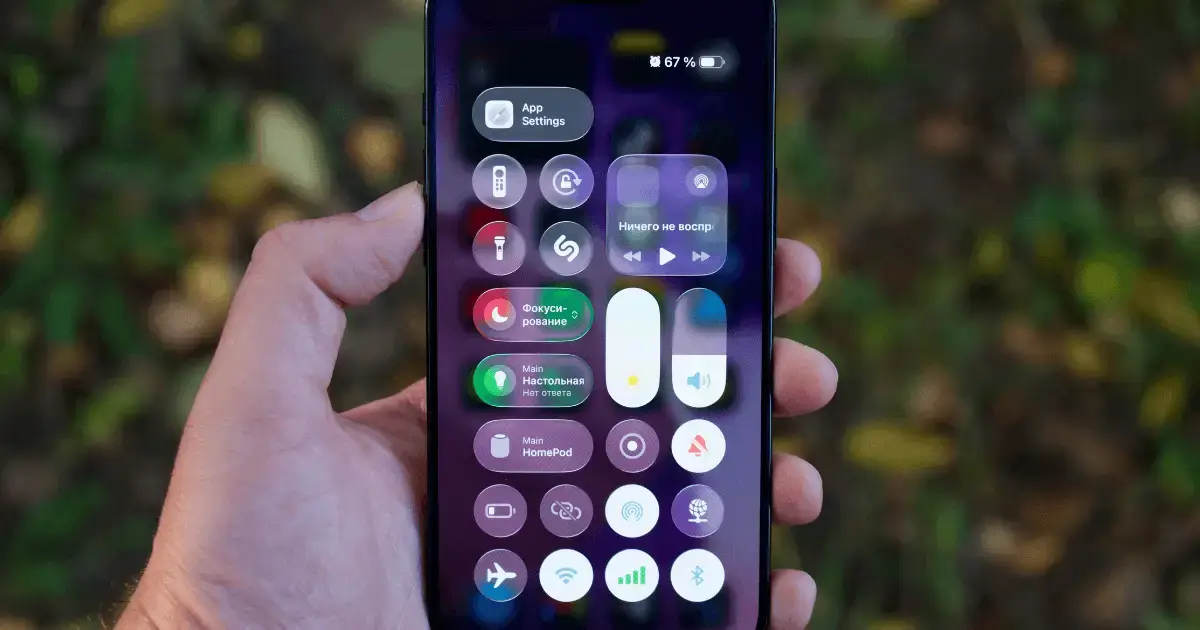
- Turn off unused connections: Switch off Wi-Fi, Bluetooth, and Mobile Data when you’re not using them. You can toggle these settings quickly through the quick settings menu (Android) or Control Center (iOS).
- Use Wi-Fi over mobile data: Whenever possible, connect to Wi-Fi instead of using mobile data. Wi-Fi uses less power than cellular data, especially for tasks like browsing and streaming.
Bonus Tip:
On both Android and iPhone, you can turn off Location-based Wi-Fi scanning and Bluetooth scanning to prevent them from searching for networks or devices when they aren’t needed.
7. Update Apps and Software Regularly
Why It Matters:
Outdated apps and software can be less optimized, potentially using more battery power. Keeping your apps and OS up-to-date ensures you’re getting the best performance and efficiency.
What You Can Do:
- Enable automatic app updates: On iPhone, go to Settings > App Store and toggle on automatic downloads. On Android, go to Google Play Store > Settings > Auto-update apps and set it to update over Wi-Fi only.
- Keep your operating system up to date: Both iOS and Android devices receive regular updates that improve battery optimization and bug fixes.
Bonus Tip:
Check the Battery Usage in Settings to see which apps are using the most power and update or delete them if necessary.
8. Reduce Visual Effects and Animations
Why It Matters:
Visual effects and animations on your phone, while attractive, consume more power as they require the GPU (Graphics Processing Unit) to work harder.
What You Can Do:
- Disable or reduce animations: On Android, go to Settings > Developer Options, and lessen the animation scale. On iPhone, you can minimize motion by going to Settings > Accessibility > Motion and turning on “Reduce Motion”.
- Use a simpler wallpaper: Live wallpapers may look cool, but they use more battery. Opt for a static background instead.
Bonus Tip:
Consider enabling Night Mode or Dark Mode for apps that support it. Dark Mode can reduce battery drain on OLED screens by turning off pixels in dark areas.
9. Avoid Extreme Temperatures
Why It Matters:
Extreme temperatures—either hot or cold—can damage your battery and cause it to drain faster.
What You Can Do:
- Keep your phone within a moderate temperature range (ideally between 32°F to 95°F / 0°C to 35°C). Avoid leaving it in hot cars or exposing it to direct sunlight for extended periods.
Bonus Tip:
Avoid using your phone while it’s charging, especially if it’s heating up. This can reduce battery health over time.
10. Consider Replacing Your Battery
Why It Matters:
Batteries degrade over time, and after a few years of use, they may not hold a charge as well as they once did. If your phone’s battery life has significantly decreased despite trying the above tips, it might be time for a replacement.
What You Can Do:
- Check battery health: On iPhone, go to Settings > Battery > Battery Health. On Android, check under Settings > Battery > Battery Health.
- Replace the battery: If your battery health is significantly low, visit your phone’s manufacturer or an authorized service provider for a replacement.
Bonus Tip:
Many phone brands offer battery replacement services for a reasonable fee, helping you extend your phone’s lifespan.
Conclusion
Battery life is one of the most important aspects of owning a smartphone, and following these simple everyday tips can help you make the most out of your device’s power. By adjusting your settings, limiting unnecessary features, and adopting energy-saving habits, you can ensure that your phone lasts longer throughout the day.
Start with these easy steps today, and enjoy a more efficient and battery-friendly smartphone experience!